YouTube description links not clickable? Run this eligibility fork
Operators often paste an affiliate URL into a YouTube description, see plain text, and conclude the platform broke the link. Current Help places clickable long-form description links under Advanced features, not phone-only Intermediate. Name the surface first, then use the router below before rewriting the CTA. This piece is the not-clickable diagnosis only.
Symptom router (start here)
Match the symptom to evidence, then jump to that checkpoint. Four checkpoints cover clickability (A-D). Flat commissions after a blue link is a different diagnosis.
Failed assumption: “YouTube broke my affiliate links”
A flat, not-clickable description link is rarely one problem. Separate never-eligible or Intermediate-only from bad paste, a bad edit path, a Shorts surface that never hyperlinks by design, lost Advanced access, or a link that already works but converts poorly. Rewriting the CTA before naming which one is noise. A 404 destination and a Feature eligibility gate do not care about a better ask.
Checkpoint: you can name the single failure lane in one sentence before this week’s fix.
Prerequisites: two surfaces and one owner check
Before opening a single editor, assemble five things: the correct YouTube Studio account logged in for that channel; a desktop browser or mobile browser in desktop mode; primary owner login if the channel is brand or managed; the public watch page URL for the same video; and a plain notepad editor with no rich formatting.
YouTube Studio preview is not the public watch page. Separately, only primary channel owners can verify identity to get access to additional features under current Help (verification Help). If you are an invited manager or editor on a Brand Account, your screen can show an ineligible state that has nothing to do with your URL formatting. The primary owner must complete verification. Once that owner is verified, current Help says all users on the channel get the same feature access as the owner.
Also set expectations early: YouTube Studio is not a reliable outbound ledger for description-link clicks. After a link is blue, measure taps with an operator-owned per-video hop, a tracked redirect, or Amazon Orders columns for the assigned Tracking ID.
Checkpoint: you can check every later lane without mistaking Studio preview for public clickability.
Checkpoint A: which surface are you on?
The surface changes the answer completely. Long-form description, Shorts description, Shorts comments, channel About links, Related Video on Shorts, Shopping tags, end screens, and pinned-comment habits are not interchangeable. Operators often paste a link into a Shorts description and expect it to behave like a long-form description. It will not.
Current YouTube Help states plainly: URLs placed in YouTube Shorts comments and Shorts descriptions are non-clickable (sharing links Help). That is a design policy, not a bug and not an eligibility miss. The same Help table marks long-form description and comment URLs as clickable when the channel has advanced features access, and it lists several Shorts-adjacent surfaces that are clickable:
- Related Videos in Shorts - clickable in the sharing-links table. Current Related Video Help says adding a related video requires advanced feature access, and the selected video must be public or unlisted on your channel. That is the official Short-to-long-form handoff when Studio offers it.
- YouTube Shopping affiliate program links - listed as clickable in the same sharing-links Help. Shopping has its own eligibility and placement rules (country limits; music channels / Official Artist Channels are excluded under current Shopping Help).
- End screens - also listed as clickable in that Help table.
Pinned comments are an Advanced feature under current verification Help (verification Help). If Feature eligibility is still Intermediate, a pinned-comment “second surface” is not available yet - the same gate that blocks long-form description hyperlinks.
If you inherited a Shorts library that depended on description or comment URLs for the ask, treat that as a surface mismatch under current Help, not a formatting bug. Route Shorts viewers through Related Video (when Advanced is on), an eligible Shopping tag, channel About, or a long-form video whose description can carry a classic affiliate URL.
Checkpoint: you named the failing surface and either moved to Checkpoint B for a long-form path or stopped expecting Shorts descriptions to hyperlink.
Checkpoint B: feature eligibility, ownership, and lost access
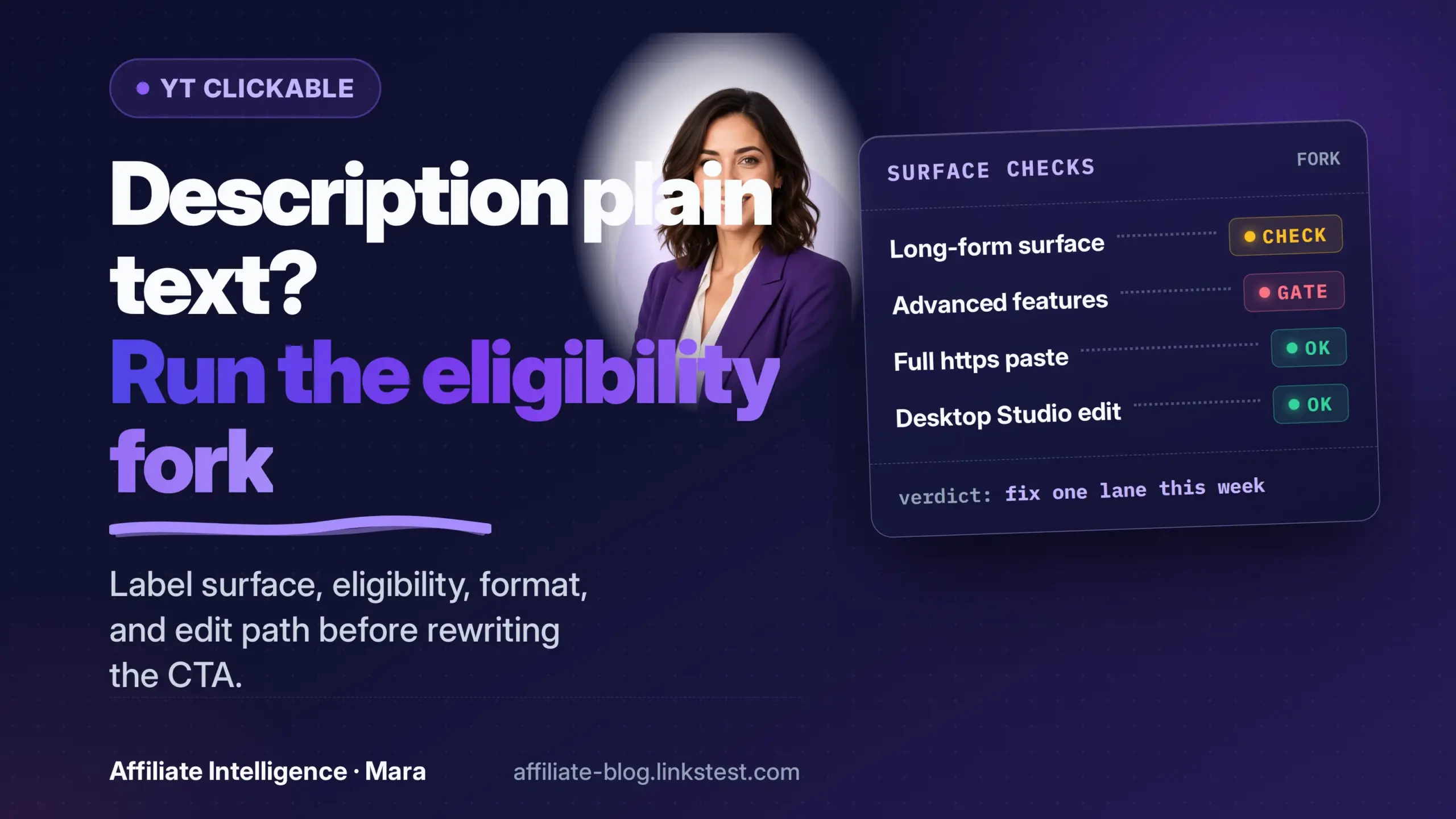
Open Studio and follow this path: Settings > Channel > Feature eligibility. Look at the line for Advanced features. Current feature-access Help places “Add clickable links to your long-form video description and posts” inside the Advanced tier (feature access Help). Phone verification unlocks Intermediate features. It does not unlock clickable long-form description links. That distinction explains many “I verified and it still does not work” cases.
Under current verification Help, creators can reach Advanced through channel history or ID/video verification where available, and ID or video verification review usually takes 24 hours (verification Help). On a new channel or a cold Brand Account, do not spend the same afternoon retrying the URL. Wait out the review.
Managed and brand channels add an ownership fork. The same Help says only primary channel owners can verify their identity to get access to additional features. If you see “Advanced YouTube features aren’t available for this account,” the documented meaning is an account where you are not the primary owner, a supervised account, or a Brand Account. An editor or manager cannot shortcut this by pasting the URL more carefully. The owner must verify - and after that, all users on the channel receive the same features as the owner.
It worked, then it stopped. Current verification Help says you can lose Advanced access by not complying with Community Guidelines or not maintaining a positive channel history (examples include strikes, spam, scamming, and misleading metadata). You get an email when access is restricted. Restore paths in that Help: improve channel history (active channels that follow the guidelines can often rebuild enough history in about two months) or verify again with ID/video where available.
Verification deleted. The same Help states that ID or video verification is usually deleted a few months after you build sufficient channel history, or after one year if you have not used Advanced features. If verification is deleted before you have enough channel history, you lose Advanced until you rebuild history or re-verify. Deleting ID/video data yourself before history is established has the same effect.
Phone verification blocks. Current Help caps one phone number at two channels. Some countries or carriers do not support Google SMS; use the voice-call option or another number. If ID or video verification fails twice, wait 30 days before trying either method again (or build channel history instead).
If Feature eligibility says Advanced is already enabled but the long-form description URL still shows plain text, open the second tree: format and edit path. Do not re-verify and do not wait another 24 hours. Re-verifying is the wrong lane.
Checkpoint: eligibility is either confirmed enabled, restored after a restriction, or corrected at the owner level before you touch the URL.
Checkpoint C: format and paste integrity
Operators often report that a bare domain without https:// stays plain text on the public watch page. That is not stated in current YouTube Help. Treat it as a test, not gospel: paste the candidate URL on a long-form video from an Advanced channel, then check the public page. Prefer a full https:// URL when you control the paste.
The homepage-redirect smell is still a useful paste/typo signal: if your affiliate URL lands on a merchant homepage instead of the product detail page, the path was likely cut off or pasted with a stray character.
Operators also report that copy-paste between videos can leave a URL that looks fine but does not hyperlink. Current Help does not document that failure. The safe test is to re-type the full URL into a plain notepad file, paste from notepad into Studio, save, and confirm on the public watch page. Do not treat “copy-paste broke the hyperlink” as a proven platform rule until that test fails.
Do not wrap the URL in HTML or Markdown anchor tags. YouTube descriptions do not render <a href="..."> as a clickable link. The “HTML/Markdown myth” is a false fix.
Shorteners and vanity wrappers only earn a place for length or routing convenience, not as a clickability unlock. If you use one, keep it compliant. The line between clean redirect hygiene and cloaked landing risk is thin; read the cloaked landing pages vs redirect hygiene before your owned-domain go/ slug hides anything from a reviewer.
Checkpoint: you have one clean URL ready for a single edit lane, and you will confirm clickability on the public page.
Checkpoint D: edit path - Studio app vs desktop
Operators report that the Studio app can truncate or cut description URLs, and that editing a truncated URL on the watch page can write the broken version back. That behavior is not spelled out in current Help. Treat it as an edit-path hypothesis: if the stored text looks cut, switch to desktop Studio (or mobile browser desktop mode), replace with a clean full URL, save, and re-check the public watch page.
After saving, compare two views: the public watch page on a logged-out or separate device, and the Studio preview. If Studio preview shows plain text but the public watch page hyperlinks, stop re-verifying and stop re-editing. That is a preview false alarm, not a broken account. If the public watch page is plain on desktop but blue on another device, treat it as a client or app path issue first, not a channel-wide eligibility flip.
Checkpoint: you know whether the plain text is a preview false alarm or a live public failure.
Checkpoint E: after links are clickable
Once the link is blue on the public watch page, do not assume commissions follow. Run a short backlog pass for Shorts surfaces that never carried classic URLs, Related Video / Shopping routes you meant to use, and any long-form descriptions that still fail the public-page test. Fix only the rows where a live surface and a clean URL now exist.
If the link is clickable and traffic exists but attributed commissions stay flat, open the YouTube affiliate links not converting: diagnose the fork sibling. Click truth after links work belongs in an operator-owned hop or tracked redirect, not a Studio analytics guess. Keep a clear, conspicuous affiliate disclosure above the first commercial link; the affiliate compliance audit checklist is the once-over when the surface goes live.
Checkpoint: you have a clean clickable surface and a named traffic-vs-commission next action.
What to do this week - operator checklist
Label the fork first. Fix one checkpoint this week. Do not run A through D in one sitting.
- A fails: Shorts description or comment URL is plain - route via Related Video (Advanced), eligible Shopping, channel About, or a long-form description. Stop expecting Shorts URLs to hyperlink.
- B fails: Intermediate-only, Brand owner not verified, Advanced restricted, or verification deleted - open Feature eligibility and follow current Help before touching the URL.
- C fails: Paste looks wrong or lands on a homepage - re-type a full URL in notepad, save in Studio, confirm on the public watch page.
- D fails: App or watch-page edit looks truncated, or Studio preview disagrees with the public page - edit on desktop Studio and trust the public page.
- E handoff: Link is blue but commissions stay flat - that is the convert sibling, not this article. If no click instrumentation ever existed, install one tracked link via the YouTube affiliate funnel: views are not commissions map before scaling uploads.
Label the surface, fix that lane, then measure the next failure honestly.
Once the URL is clickable, assign jobs and prove which surface wins with the YouTube affiliate link placement guide instead of pasting the same link everywhere.