Google Ads offline conversions not counting: the silent filters you’re missing
Operators often treat a green import status as proof that Google Ads learned the conversion. It is not. A successful upload means the CSV or API call was accepted, not that the platform attributed the event to a campaign, not that the Conversions column will increment. That distinction explains most “google ads offline conversions not counting” panic. The fix is rarely another upload. The fix is reading the silent filters that run after the green tick in your offline conversion import.
The thesis: upload success measures delivery. Learning and counting happen downstream, behind silent filters. A common failure mode in offline conversion import is re-uploading the same file three times, then staring at a blank Conversions column and assuming a bug. There is rarely a bug. The system is applying rules you never saw.
Failed assumption: a successful upload means Ads learned
Google Ads splits offline conversion issues into two buckets: upload errors, which block the file before acceptance, and data discrepancies after a successful upload, where the rows are accepted but never appear in reporting. The second bucket is the one operators skip. The help documentation for fixing discrepancies lists three reasons conversions disappear after a successful upload: date range misalignment, expected processing delays, and conversions not processed after being accepted. The last category is where the silent filters live.
So the next click after a green import history is not another upload. It is the Diagnostics tab and the processed file. That is where accepted-but-not-counted rows leave fingerprints. If you go straight to the Conversions column and see nothing, you are reading the final output of a pipeline you have not inspected.
The import history only answers one question: did the file arrive? It does not answer whether the click ID matched, whether the action was primary, whether the timestamp preceded the click, or whether consent fields existed. Each of those is a separate gate.
Silent filter map (six checks)
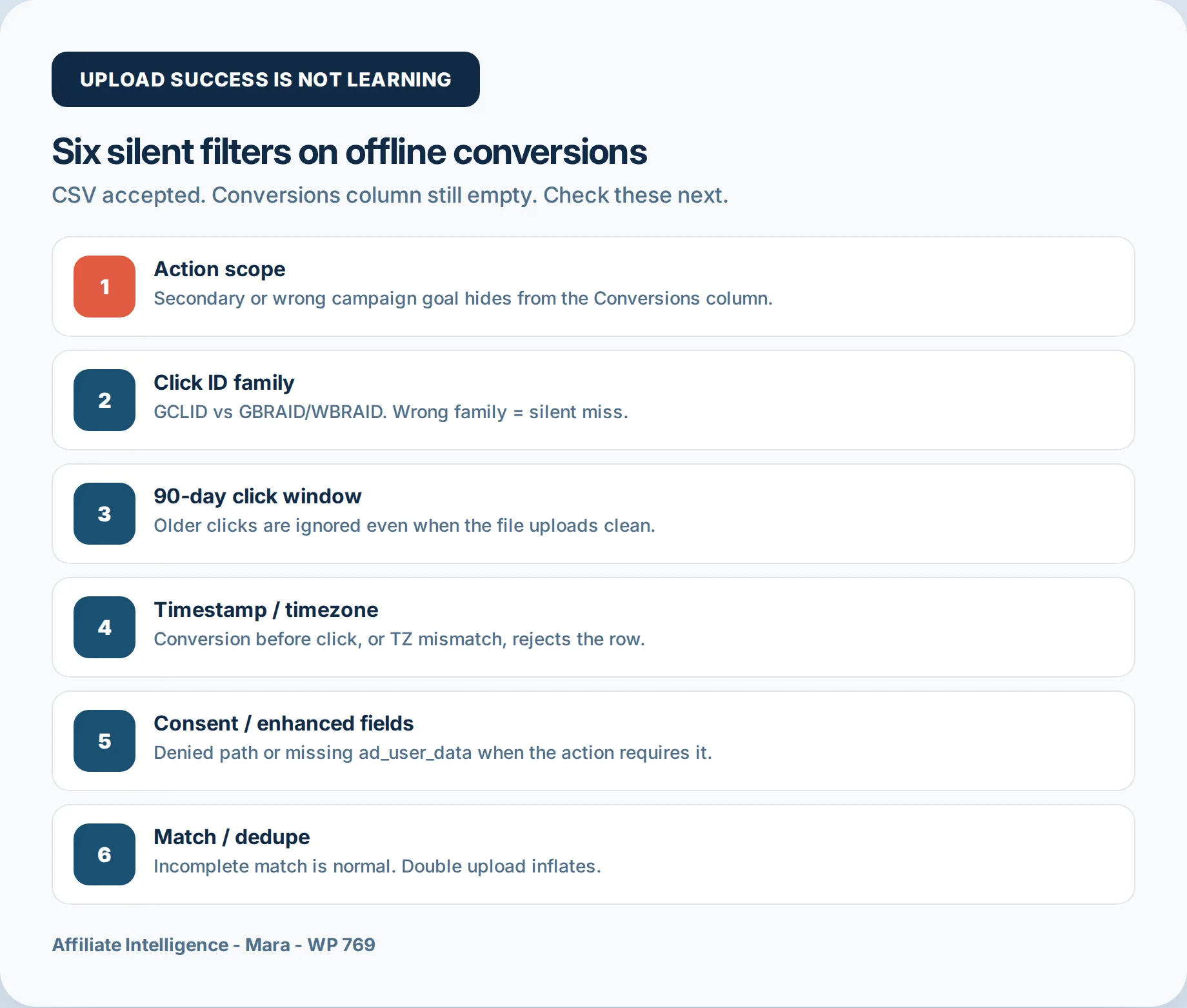
Six filters sit between “uploaded” and “counted.” One of them, or more than one, is active in almost every “offline conversions not counting” case. They are not visible in the main table.
They live in action settings, upload templates, Diagnostics summaries, and the processed file.
Action primary vs secondary (and campaign goals)
A conversion action set to secondary will not appear in the Conversions column. It appears in All conversions, which operators rarely open. Smart Bidding ignores secondary actions unless they are part of a custom goal, so even if the event matched, the algorithm will not optimize on it. The setup guide states it plainly: correctly configuring your conversion actions as primary (biddable) or secondary (observation-only) is critical, because misconfiguring these settings can prevent Smart Bidding from optimizing effectively. Account-level primary settings can also be overridden per campaign through custom goals, so a campaign may have a goal that excludes your offline action.
Check this before anything else. It takes ten seconds and explains a blank column with a fully healthy upload.
Click ID family: GCLID vs GBRAID/WBRAID
Offline import accepts different identifier families. GCLID is user-specific and tied to a single click. GBRAID is a non-unique, privacy-preserving parameter that measures aggregate conversions without linking to individual users. WBRAID is the web equivalent for iOS. If you capture GBRAID and then place it in the GCLID column of your template, the row fails silently or gets ignored. The system does not guess.
GBRAID has its own setup path and its own processing cadence. Google Ads Help notes that conversion processing typically takes less than 12 hours, but can take up to 72 hours if you use GBRAID and WBRAID-keyed conversions. So the correct fix is to put each identifier in its correct column and wait out the lag, not to re-upload.
The 90-day click window
Google keeps the GCLID for 90 days. Older clicks are rejected or ignored even if the file format passes. The help article on fixing discrepancies lists “Identifiers or iOS URL parameters are too old” as a specific error, with the explanation that Google only keeps the GCLID for 90 days and recommends uploading more frequently. If your sales cycle is longer than 90 days, import a different offline conversion event that happens within the window, like a form fill or a scheduled call, not the final purchase.
There is a related trap that operators miss: a conversion action created after the click. If no Import from Clicks action existed when the GCLID’s click occurred, the upload fails with the error “Conversion actions not active.” The action has to exist before the click, not before the conversion. That timing constraint is not obvious from the UI.
Timestamp and timezone
The offline conversion cannot happen before the ad click. If your conversion timestamp precedes the click timestamp, Google rejects the row with an invalid conversion time error. The help article says it directly: add 1-2 days to your conversion time in your upload, or check that the time zone is properly set. The most common root cause is timezone mismatch. Your CRM stores UTC, your upload template says America/Chicago, and a conversion at 9am local becomes 2am UTC, which can fall before a late-night click.
The timestamp must include a timezone offset or timezone ID. A missing offset is a frequent cause of upload errors in legacy file imports. If you see rows rejected with “conversion_date_time precedes click,” fix the offset first, not the business logic.
Consent and enhanced fields when required
Consent signals sit in the upload itself. The Ad User Data field accepts Granted or Denied. If you upload with Denied, or omit the field when Consent Mode requires it, the row can be accepted but not counted for ad attribution. This is a silent filter, not a rejection. The deeper consent story lives in the cookie consent tax piece, but the operational point here is narrower: enhanced conversions for leads relies on hashed user-provided data and consent fields, and if those fields are missing or denied, matching falls through.
Modeling has a floor. Below about 700 ad clicks over 7 days per country and domain grouping, Google Ads will not populate the modeled column. That number is not a guess; it is documented in the consent modeling context. If your account sits below that threshold and you are expecting modeled recovery, you will see empty space and call it a bug. It is a threshold.
Match and dedupe incompleteness
Match is never 100 percent structurally. iOS strips identifiers, multi-device journeys break the link, and redirect chains can drop the click ID before it lands in your CRM. Google Ads deduplicates on a combination of conversion action name, conversion time, and the relevant unique identifier like GCLID or order ID. If you upload the same conversion twice, the second is discarded as a duplicate, so double-uploading does not inflate numbers, but it can obscure the real miss rate.
I will not quote a universal match percentage because one does not exist. Match rates vary by traffic source, consent configuration, and identifier type. The professional move is to read your own Diagnostics, not borrow a benchmark.
How to read Diagnostics and the processed file
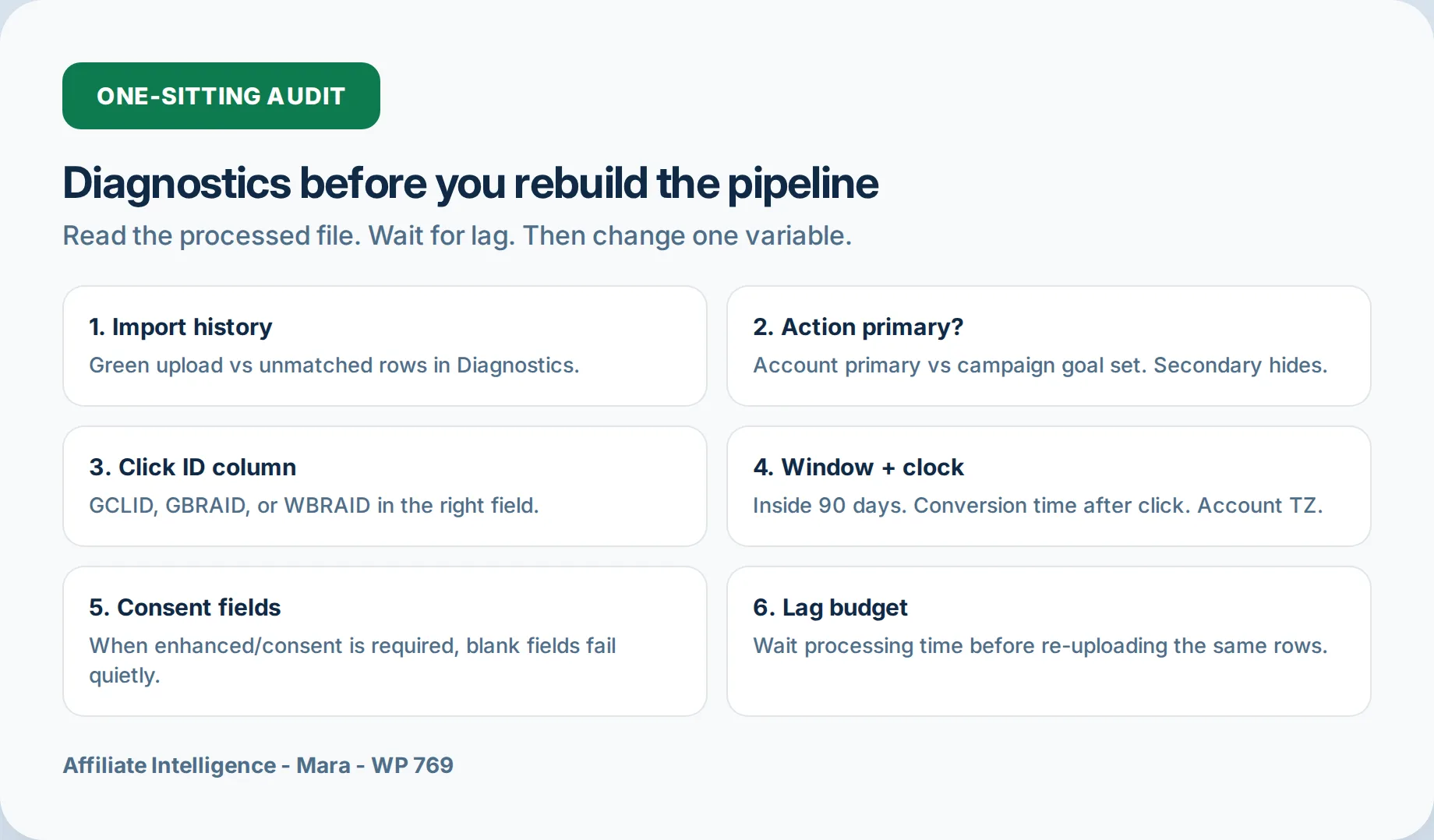
Unmatched rows hide in two places. The Diagnostics tab shows account-level summaries: total events received, successfully processed events, pending events, and an alerts field grouped by error type. The processed file, if you downloaded it, shows row-level results with partial failure reasons. That is where a single corrupted GCLID or a mistyped conversion name becomes visible.
The lag window matters before you panic. Standard GCLID imports usually process in under 12 hours. GBRAID and WBRAID keyed conversions can take up to 72. Google Ads Help documents both processing windows. Pending events may take up to 24 hours to complete, according to Google Ads file import guidance. So a conversion uploaded Monday may not show in the Conversions column until Wednesday if iOS identifiers are involved. Re-uploading during that window does nothing except create duplicate suppression work.
Another silent killer: value tracking toggled off at the conversion action level. The upload succeeds, the conversion row may even appear, but the value column stays blank. Check action settings before assuming your CRM value mapping broke. If you want the full argument for first-party ceilings in a cookieless stack, the cookieless attribution piece covers that, but here the fix is a single toggle.
Primary vs secondary and the two-action trap
The two-action trap is specific and common in lead generation. You create two conversion actions: Lead Form Submitted and Purchase. Both are primary. You import both events for the same GCLID, sometimes in the same file. Smart Bidding now sees two primary conversions for one ad interaction and has to decide which one to optimize toward. It often chooses the earlier, higher-volume action, which might be a cheap form fill that never becomes revenue.
The fix is not to delete the form fill action. It is to assign one outcome as the biddable primary and the other as secondary or part of a custom observation goal. For most affiliates and lead buyers, the purchase is the only primary. The form fill is diagnostic. Google Ads Help warns directly that misconfiguring primary and secondary can prevent Smart Bidding from optimizing effectively, and the two-action trap is the classic mistake.
Do not solve this by uploading fewer rows. That hides the problem from your own reporting. Solve it by scoping the action, then letting the Counting settings and conversion windows do the rest.
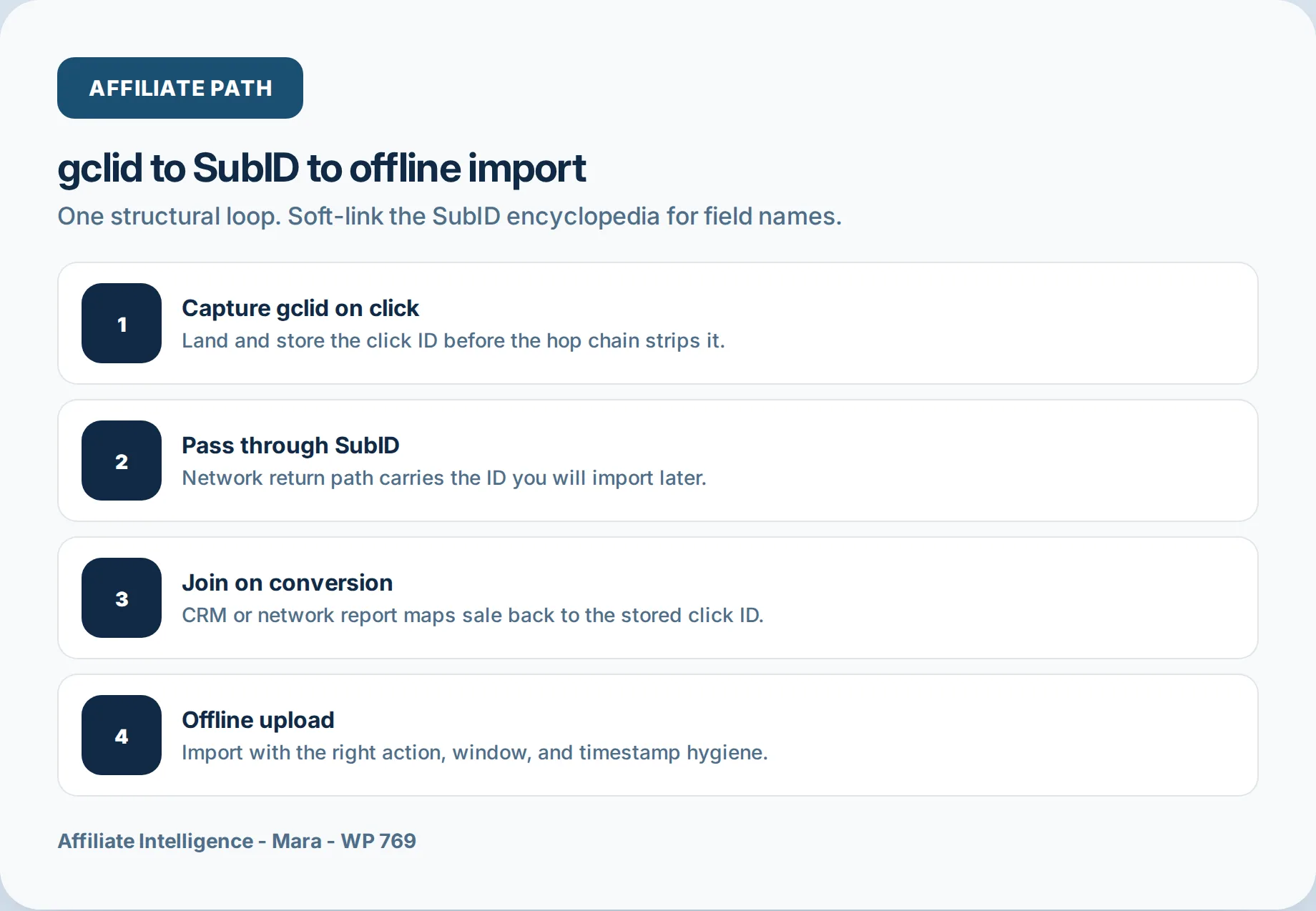
Affiliate path: gclid through SubID then offline import
In affiliate land, the loop is structural. You run Google Ads to a pre-sell page, pass the gclid into a SubID field on the affiliate link, and the network stores that value server-side. When the conversion posts, the network returns the SubID in its payout report or postback. You then export that gclid and import it back into Google Ads as an offline conversion. The algorithm closes the loop and starts optimizing on actual network sales, not link clicks. That is the entire mechanism, and it takes one SubID slot plus a working postback. the SubID tracking guide covers the field mechanics, server-side tracking guide covers the UTM versus SubID source-of-truth decision, and S2S postback failure map maps where the green-tick postback silently dies. I am not rebuilding network parameter tables here. The point is that if any silent filter in the import pipeline drops the row, the affiliate sale still pays, but the ad platform stays blind.
One-sitting audit checklist
Run this in one sitting, in order. First, open the import history and confirm the file was accepted. Then open Diagnostics and read the alerts field. If the status is not EXCELLENT, the error group names your problem.
Second, check action scope. Is the action primary? Is it included in the campaign’s conversion goal? Third, check the click ID column. Are you mixing GCLID and GBRAID in one column? Fourth, check the click window and the timestamp offset. Is the GCLID older than 90 days? Does the conversion time include a timezone and fall after the click? Fifth, check consent fields and enhanced data. Are ad_user_data and hashed user-provided fields populated where required?
Then wait. If GBRAID or WBRAID is involved, give it 72 hours before re-uploading. If the Diagnostics show pending events, give it 24 hours. Re-uploading early does not speed up processing. It creates duplicate suppression noise.
Run this audit in one sitting before you rebuild anything. The alerts field inside Diagnostics is the first honest signal; it names the filter that is already failing. Re-uploading before that signal changes nothing except the duplicate queue. The habit is not to upload again. It is to read.
One common question: “My upload says 100 percent success but the Conversions column shows 4.” That is the secondary action filter, the timestamp filter, or the click ID family filter, in that order of likelihood. Another question: “Should I use enhanced conversions for leads instead of GCLID import?” Usually yes, because enhanced conversions for leads supplements GCLID matching with hashed email or phone, which improves durability. The help article on offline imports recommends starting with enhanced conversions for leads because it is an upgraded offline conversion import that is easier to set up and offers durable, more accurate reporting and cross-device conversions.
The closing challenge: stop treating the upload confirmation as the finish line. The next time your offline conversions do not count, do not re-upload. Open Diagnostics, read the processed file, and walk the six filters. One of them is yours.